A terminal tool to summarize your Git commit history for daily standups, using AI. Works with Google Gemini out of the box, or with any OpenAI-compatible API (OpenRouter, the Vercel AI Gateway, a local server, OpenAI itself, …).
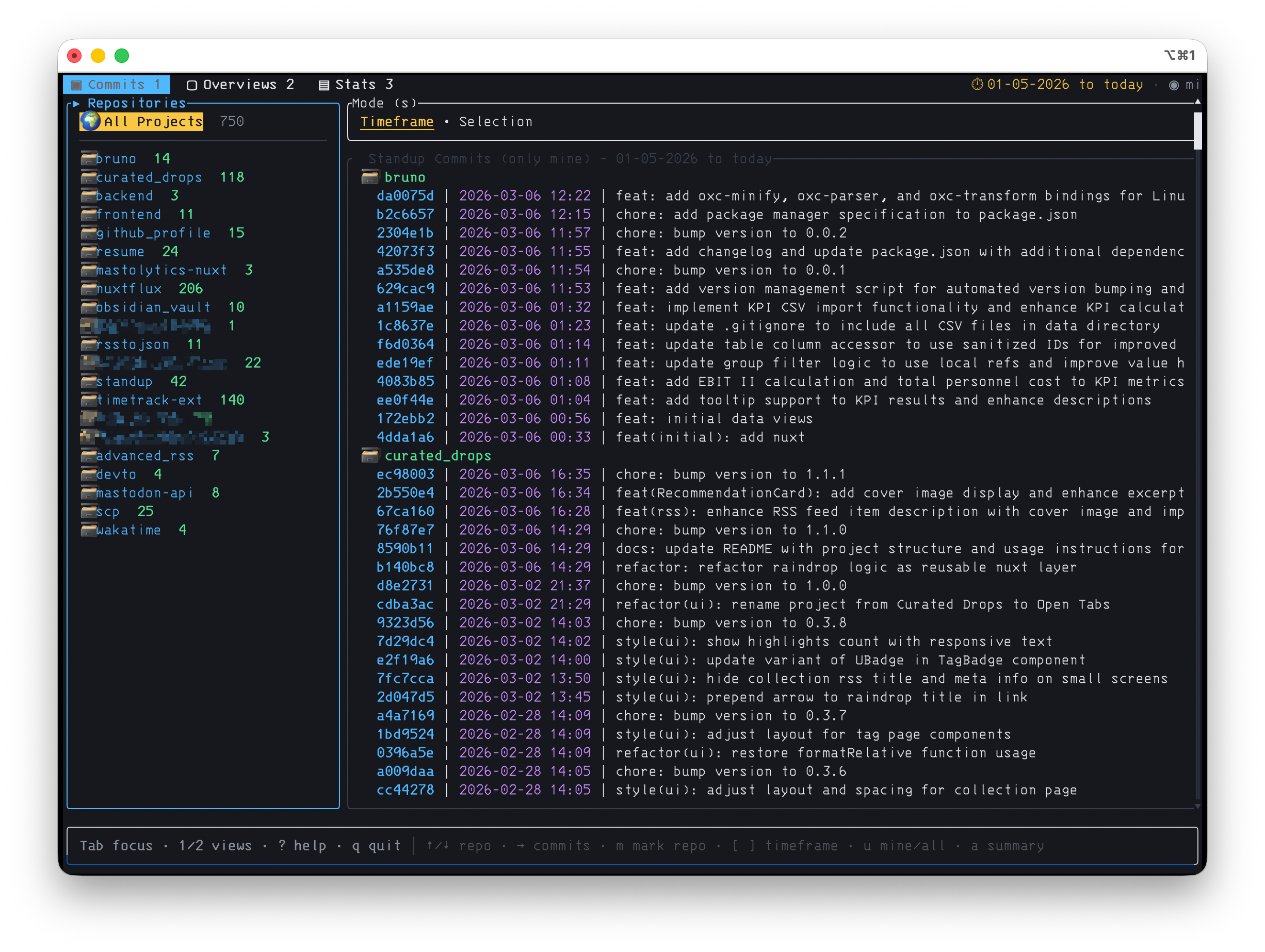
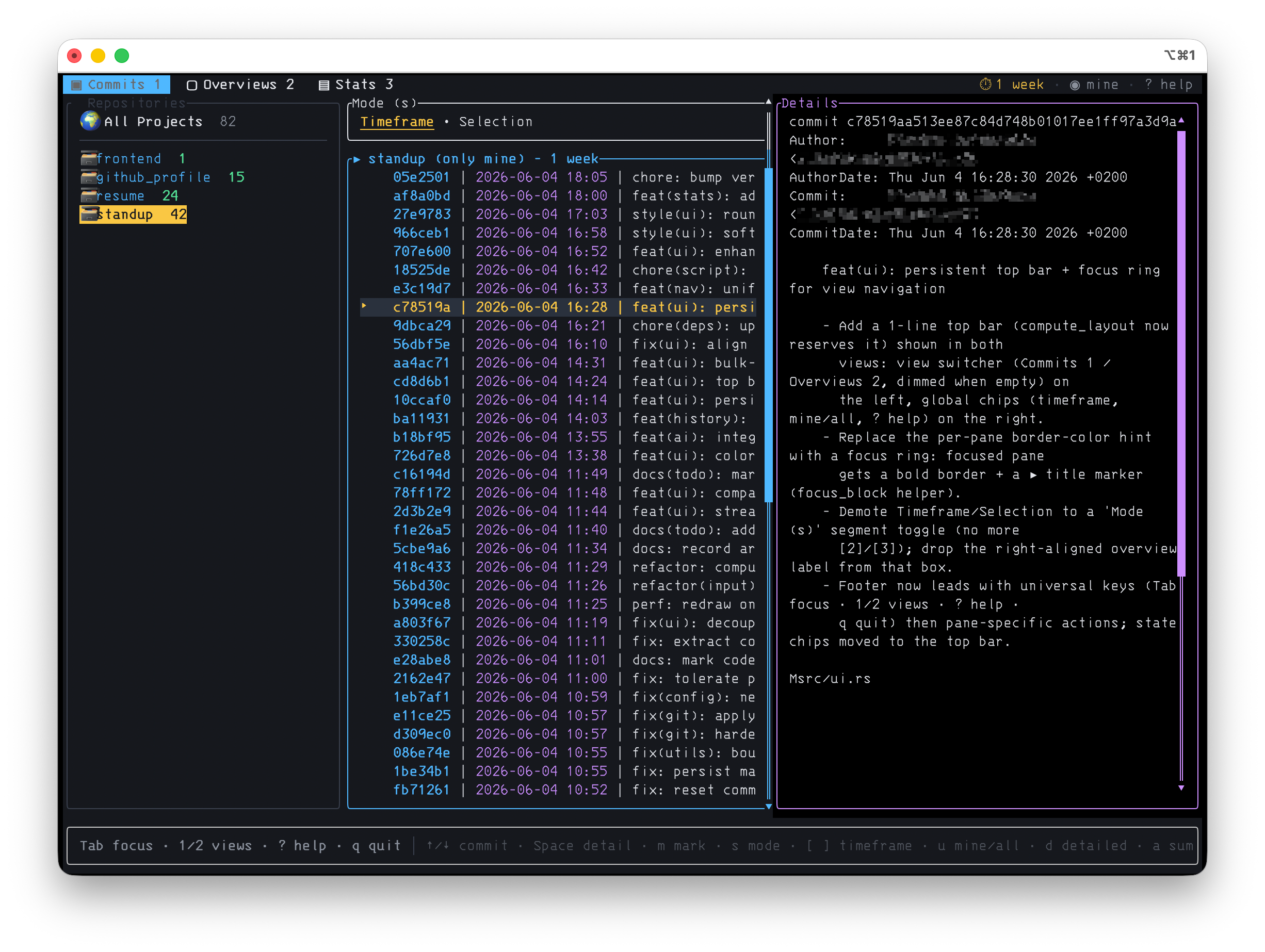
| Commits view | Commit detail |
|---|---|
 |
 |
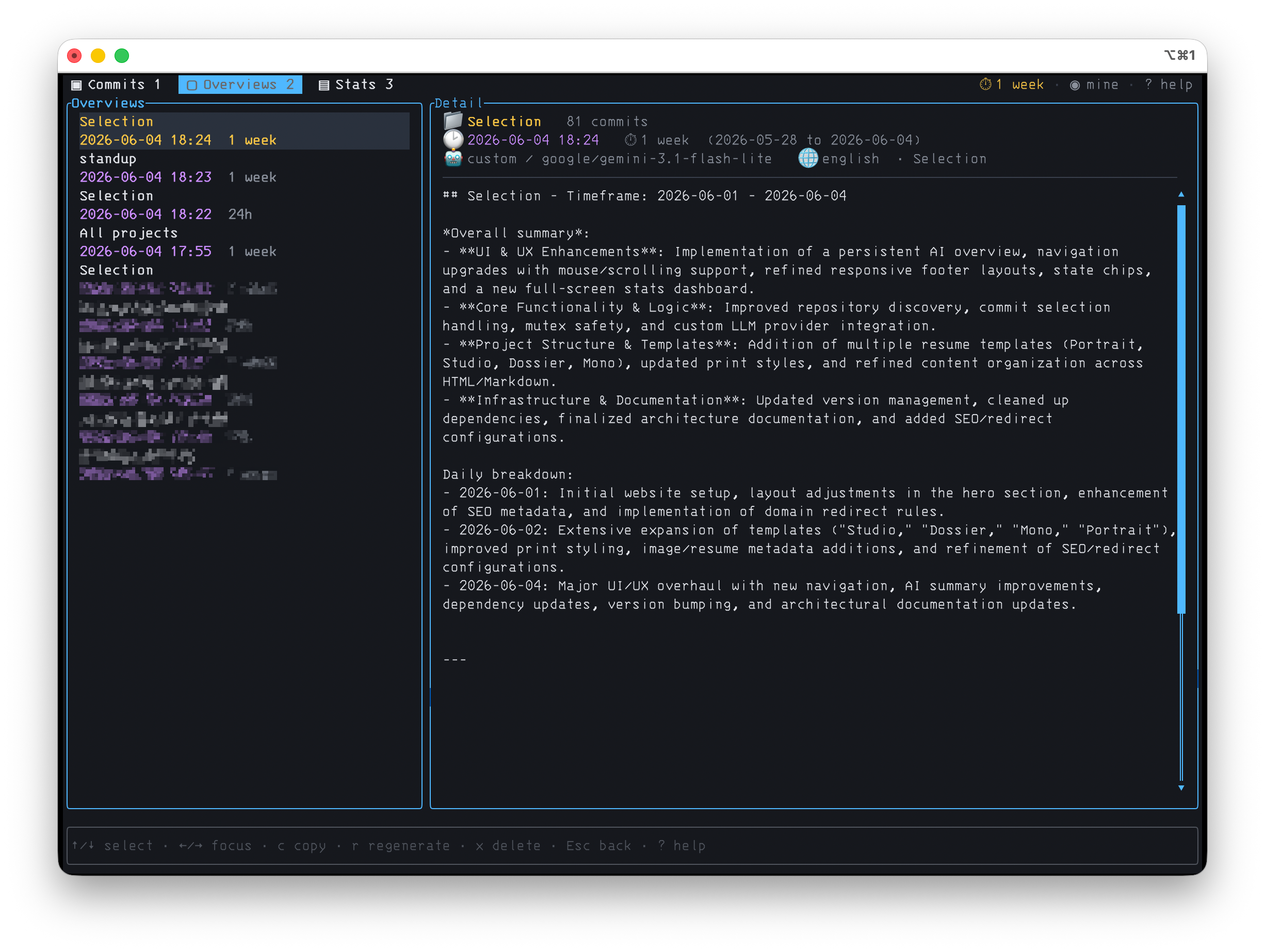
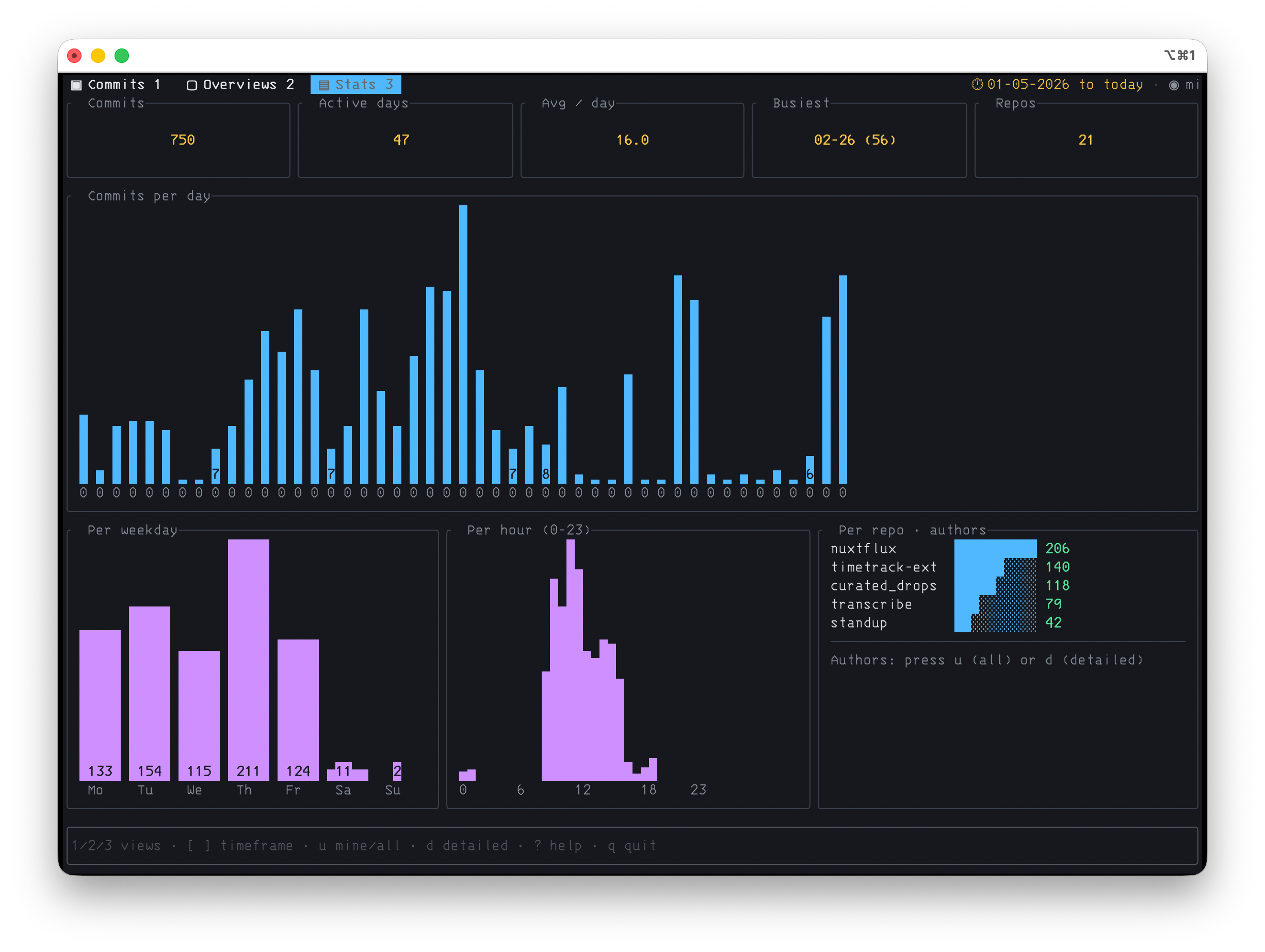
| Saved AI overviews | Stats dashboard |
 |
 |
- Summarizes Git commit history for one or more projects
- Groups changes by day and topic
- Supports multiple repositories
- Three views with a consistent keymap: a Commits view (
1), a persistent Overviews view (2), and a full-screen Stats dashboard (3) - AI overviews are saved to disk and survive restarts — browse, copy, regenerate, or delete past summaries in a master/detail layout
- Customizable summary prompt
- Copy summary to clipboard with one keypress
- Mark individual commits with
m, or bulk-mark a whole repo's commits from the sidebar, then summarize just the selection - Compact, responsive layout with a top bar, a focus ring, and a context-aware footer
- Built-in
?help overlay listing every key - First-run setup wizard (re-run anytime with
--setup) that picks your provider, model, API key, and language — Gemini, OpenRouter, the Vercel AI Gateway, OpenAI, or any OpenAI-compatible endpoint - Direct / non-interactive mode:
--listprints the commits and--generateprints an AI summary straight to stdout — pipeable into files,pbcopy, or other tools - Stats dashboard also breaks commits down by conventional-commit type (
feat/fix/chore/ …) and by ticket reference (e.g.ABC-123) - Recent AI generations persist to a history store, capped by
recent_generations(default 20) — shared by the TUI and--generate
- Rust (for building)
- An API key for your chosen provider — a Gemini API key, or a key for any OpenAI-compatible service (e.g. OpenRouter, the Vercel AI Gateway, or OpenAI).
cargo install whathaveidoneThe first time you launch whathaveidone, an interactive setup wizard walks you through:
- Provider — Gemini (recommended), OpenRouter, the Vercel AI Gateway, OpenAI, or a generic OpenAI-compatible endpoint. Picking a gateway fills in the right base URL automatically.
- Model — a short, curated list of sensible, cheap-and-fast models for the chosen provider, plus a "type it yourself" option.
- API key — stored per provider, so switching providers later recalls the right key.
- Language — the default language for summaries.
Your answers are written to ~/.config/whid/whid.toml. Re-run the wizard anytime to reconfigure:
whathaveidone --setupIf you'd rather skip the wizard, set a key via environment variable:
# Gemini (default)
export GEMINI_API_KEY=your-key-here

# …or any OpenAI-compatible provider
export CUSTOM_API_KEY=your-key-here
You can also store keys directly in your config (gemini_api_key, custom_api_key, or the per-provider stores the wizard uses). Add the relevant export line to your shell profile (e.g. ~/.zshrc) to make it persistent across sessions.
whathaveidone uses a TOML file for configuration, allowing you to customize its behavior.
The application loads settings from up to three locations in the following order of precedence (lower numbers are overridden by higher numbers):
- Project Blueprint (
whid.toml): Awhid.tomlfile located in the project's root directory serves as the base configuration. This file is required and acts as a blueprint for user-specific settings. - User Configuration (
~/.config/whid/whid.toml): On the first run, the application copies the project'swhid.tomlto a user-specific directory. This file stores your personal default settings. - Local Override (
whid.toml): You can place awhid.tomlfile in the directory where you run thewhidcommand. Its settings will override any of the above, which is useful for project-specific configurations.
Here's an example of the whid.toml file and the available settings:
# Which AI backend to use: "gemini" (default) or "custom".
# Can be overridden by the --provider command-line flag.
provider = "gemini"

# The default Gemini model to use for summaries (when provider = "gemini").
# Can be overridden by the --model command-line flag.
gemini_model = "gemini-3.1-flash-lite"

# Your Gemini API key. If empty, the GEMINI_API_KEY env var is used instead.
gemini_api_key = ""

# Set to false to disable the startup prompt for the API key.
prompt_for_api_key = true

# --- Custom OpenAI-compatible provider settings (used when provider = "custom") ---
# Base URL of the endpoint, e.g. https://openrouter.ai/api/v1 or https://api.openai.com/v1.
# Can be overridden by the --base-url command-line flag.
custom_base_url = "https://openrouter.ai/api/v1"

# Model name for the custom provider, e.g. "openai/gpt-4o-mini".
# Can be overridden by the --model command-line flag.
custom_model = "google/gemini-3.1-flash-lite"

# API key for the custom provider. If empty, CUSTOM_API_KEY is used instead.
custom_api_key = ""

# Per-provider key stores the setup wizard fills in, so switching providers
# later recalls the right key.
openrouter_api_key = ""
vercel_api_key = ""
openai_api_key = ""

# Optional: Path to a custom prompt template file.
# Can be overridden by the --prompt command-line flag.
custom_prompt_path = ""

# Default language for the AI summary.
# Can be overridden by the --lang command-line flag.
lang = "english"

# How many of the most recent AI generations to keep in the history store
# (~/.config/whid/overviews.json). Applies to the TUI and direct --generate mode.
recent_generations = 20Run the app in your terminal:
whathaveidone
# or
whidTwo flags skip the TUI entirely and print to stdout, so you can pipe the output into files, the clipboard, or other tools (great for scripts and cron jobs):
# Print the raw commits (grouped per repo with a "## name" header) and exit
whathaveidone --list
whathaveidone -l week              # last week's commits

# Generate the AI summary, print it, and exit
whathaveidone --generate
whathaveidone -g week --lang german > standup.md
whathaveidone -g | pbcopy          # straight to the clipboard (macOS)
Both honour the same timeframe argument, --from / --to, --lang, --provider, and --model flags as the TUI. In direct mode the interactive setup wizard and API-key prompt are skipped so the piped output stays clean — a missing key or provider error is written to stderr with a non-zero exit code instead. A successful --generate is still saved to your overview history (capped by recent_generations).
The app has three top-level views and one consistent key model that separates which view you're in from which pane has focus:
- Commits (
1) — the sidebar of repositories plus the commit list. Switch the list between Timeframe and Selection mode withs. - Overviews (
2) — a master/detail browser of past AI summaries (dimmed until you generate one). The left list holds every saved overview with its creation metadata; the right pane shows the full text. - Stats (
3) — a full-screen dashboard summarizing the commits in the current timeframe: totals (commits, active days, average per active day, busiest day, repos), commits per day, by weekday and by hour, a per-repository and per-author breakdown, plus a conventional-commit type breakdown (feat/fix/chore/ …) and a ticket breakdown (references likeABC-123, with how many commits carry one). Pressuto toggle mine / all authors anddfor a detailed breakdown.
Everywhere: Tab / Shift+Tab move focus between panes, arrows or h j k l navigate and scroll within the focused pane, ? toggles a help overlay listing every key, and q quits.
Press a to generate an AI overview. The app switches to the Overviews view with a spinner; when it finishes, the summary becomes the newest saved entry (persisted to disk) so it's still there after a restart.
By default whathaveidone uses Google Gemini. You can switch to any custom OpenAI-compatible API (OpenRouter, Vercel AI Gateway, a local server, OpenAI itself) by setting provider = "custom" in your whid.toml, or with the --provider flag.
Gemini model selection
Set gemini_model in your config, or use --model <model> as a command-line override. The default is gemini-3.1-flash-lite.
whathaveidone --model gemini-1.5-pro
# or
whathaveidone --model gemini-2.5-flash-preview-05-20
Custom OpenAI-compatible provider
Set provider = "custom", a custom_base_url, and a custom_model in your config — or pass them on the command line. The API key comes from custom_api_key in the config or the CUSTOM_API_KEY environment variable.
# OpenRouter example
export CUSTOM_API_KEY=sk-or-...
whathaveidone --provider custom \
  --base-url https://openrouter.ai/api/v1 \
  --model openai/gpt-4o-mini

# OpenAI example
export CUSTOM_API_KEY=sk-...
whathaveidone --provider custom \
  --base-url https://api.openai.com/v1 \
  --model gpt-4o-mini
The selected provider and model are shown in the Overviews view (and in the --debug output) while waiting for the AI response.
To use a specific language for the AI summary, add the --lang <language> parameter:
whathaveidone --lang german      # German
whid --lang english              # English (default)
Note: The translation is performed by Gemini itself. The --lang command-line flag will always override the lang setting from your configuration file.
Use [ or ] to cycle the time interval (previous / next). Tab / Shift+Tab move focus between panes instead.
Alternatively, you can specify the start interval for commit history as a parameter:
24ortoday(default)4872oryesterdayweekmonth
Example for 1 week in German:
whathaveidone week --lang germanYou can specify a custom date range for the commit history using the --from and --to parameters. The date format is YYYY-MM-DD.
--from YYYY-MM-DD: Start date for the commit history.--to YYYY-MM-DD: End date for the commit history. If not provided, it defaults to the current date.
Example:
whathaveidone --from 2023-01-01 --to 2023-01-31You can provide a custom prompt template file using the --prompt <filename.txt> option. Placeholders in your template will be replaced automatically:
{from}: Start date (YYYY-MM-DD){to}: End date (YYYY-MM-DD){project}or{projectname}: Project name{interval}: Interval label (e.g. "week"){lang}: Language (e.g. "german", "english"){commits}: Commit data to be summarized
Example:
whathaveidone --prompt myprompt.txtIf the file cannot be loaded, the default prompt will be used.
The --prompt command-line flag will always override the custom_prompt_path from your configuration file.
You can toggle a detailed, multi-line commit log view (similar to git log --format output) by pressing the d key in the commit list. This view shows the full commit message body and author for each commit, formatted in a pretty-printed, multi-line style.
Note: The detailed view is only recommended for smaller datasets (shorter timeframes or a single project). For large repositories or long timeframes, the output may be too large for the AI model to summarize effectively.
Press ? at any time for an in-app overlay of all keys.
1/2/3: Switch view (Commits / Overviews / Stats)Tab/Shift+Tab: Move focus between panes←→/hl: Move focus left / right↑↓/jk: Navigate / scroll in the focused pane?: Toggle the help overlayq: Quit
Space: Open/close the detail panes: Toggle list mode (Timeframe / Selection)m: Mark/unmark a commit — or, with the sidebar focused, mark/unmark the whole repo's commits[/]: Previous / next timeframeu: Toggle mine / all authorsd: Toggle detailed commit view (multi-line, git log style)a: Generate an AI overview
Enter/c: Copy the selected overview to the clipboardr: Regenerate the last overviewx/Del: Delete the selected overview (asksy/nto confirm)a: Generate a new overviewEsc: Back to Commits (cancels an in-flight generation)
The dashboard is read-only — only the timeframe and author/detail filters are live; they reload the commits and the charts recompute.
[/]: Previous / next timeframew: Jump to the week timeframeu: Toggle mine / all authorsd: Toggle the detailed breakdown1/2: Back to Commits / Overviews
coming soon